
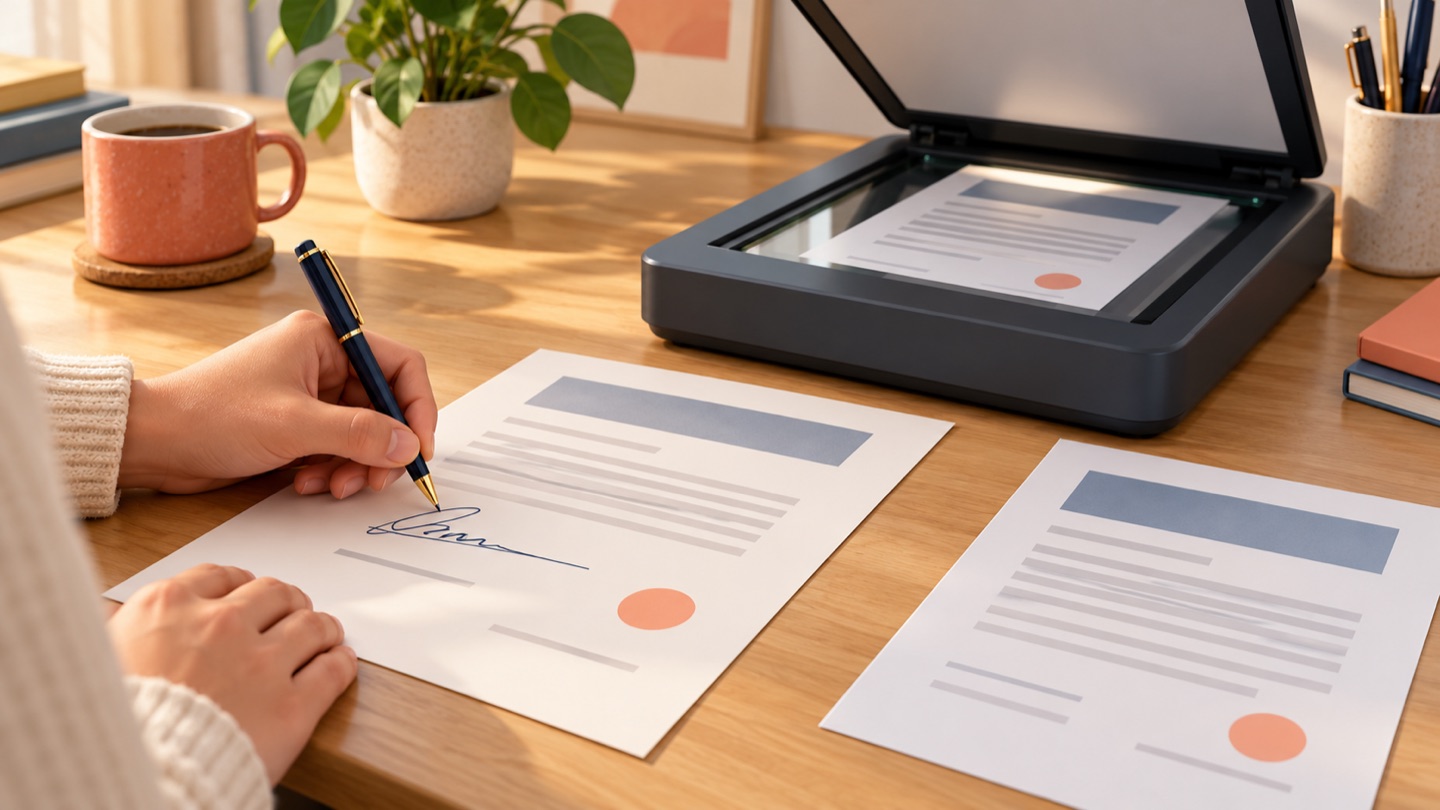
A wet signature is made by hand with ink on a physical document. Drawing your name on a screen or inserting a signature image into a PDF may look handwritten, but it is not a wet-ink signature. When instructions say “wet signature,” ask whether the recipient needs the paper original or accepts a scanned copy. Those are different requirements.
If a visible electronic signature is accepted
When the recipient confirms that ink on paper is not required, use Sign PDF Document in Chrome to prepare the PDF without printing. Draw a signature or upload a PNG, JPEG, or WebP signature image, add names, dates, stamps, text, and notes, then check page order and export or print the completed file. The app processes documents locally on your device and does not require an account.
This is a visible electronic-signature workflow. It does not change the requirements of a form that explicitly asks for a wet signature, original paper, or a certificate-based signature.
What to confirm before printing
Read the instructions and ask the recipient if any detail is unclear:
- Do they require ink on paper, or will a scan of the signed paper work?
- Must you use a specific paper size, color ink, witness, or notary?
- Should you sign every page, initial changes, or complete a separate date field?
- Do they need the original mailed or delivered, and where should it go?
- Is an electronic or certificate-based signature allowed instead?
Do not infer acceptance from the fact that the recipient sent a PDF. Follow the stated process, especially for contracts, official applications, or regulated paperwork.
Print, sign, and scan the PDF
- Save the final version. Check that you have the complete, correct PDF before printing. Keep a digital copy of the unsigned source.
- Print all required pages. Use the requested paper size and print settings. Check page count and scale so that no text or signature lines are cut off.
- Sign with ink. Use the requested color and sign in the correct field. Add the date, initials, witness details, or other information only as instructed.
- Scan every page. Use a flatbed scanner or your phone’s document-scan mode. Place pages in order and make sure the entire page is inside the frame.
- Review the scan. Check focus, contrast, orientation, page edges, page count, and whether the signature is legible. Retake pages with shadows or cropped content.
- Create one PDF. Combine pages into a single file if requested. Use a clear name such as
contract-signed-scan.pdf. - Open the final PDF. Verify that it opens and matches the paper document before sending it through the approved channel.
- Keep the paper original. Do not discard it until the recipient confirms whether it is needed and the document has been received.
Wet signature vs scanned signature vs electronic mark
| Type | How it is made | What the recipient receives | Key question |
|---|---|---|---|
| Wet-ink signature | Pen on a printed document | Paper original, unless scanned too | Must the original be delivered? |
| Scan of a wet signature | Sign on paper, then scan or photograph it | PDF or image copy of the paper | Is a scan accepted in place of the paper? |
| Visible electronic signature | Draw, type, or place a signature in a PDF | Edited digital document | Does the recipient accept a visible mark? |
| Certificate-based digital signature | Sign with a digital certificate in compatible software | PDF with cryptographic signature data | Which certificate or signing service is required? |
A scan shows an image of a signed page. It does not provide the same validation as a certificate-based digital signature. Conversely, a visible signature annotation may be acceptable for some workflows but does not become a wet signature just because it resembles handwriting.
If the PDF is too large or hard to read
Use the document-scan mode rather than taking a casual angled photo. Keep the camera parallel to the page, use even light, and avoid glare. If the scan is too large to send, use a trusted PDF compression tool only if compression does not make text or signatures unreadable and the recipient permits it. Reopen the compressed file and inspect every page.
Do not crop the page margins if they contain stamps, page numbers, or handwritten notes. Do not alter or remove another person’s marks. If the signature line is missing or the pages do not print correctly, contact the sender for a corrected copy.
Frequently asked questions
Is a signature drawn on a tablet a wet signature?
No. It is a visible electronic signature. Ask whether the recipient accepts it or specifically requires ink on a physical page.
Does emailing a scan satisfy a wet-signature requirement?
Not always. Some recipients accept a scan initially but still require the paper original. Confirm both the format and delivery method.
Can I sign the PDF electronically instead of printing it?
Only if the recipient accepts that type of signature for this document. Ask whether a visible signature or a certificate-based digital signature is needed.
Should I send the scan as a PDF or image?
Use the format requested. A PDF is usually easier to review when a document has multiple pages, but never assume it is accepted without checking the instructions.
Related guides
- How to sign a PDF: methods and final checks
- How to fill and sign a PDF online
- How certificate-based digital signatures work