
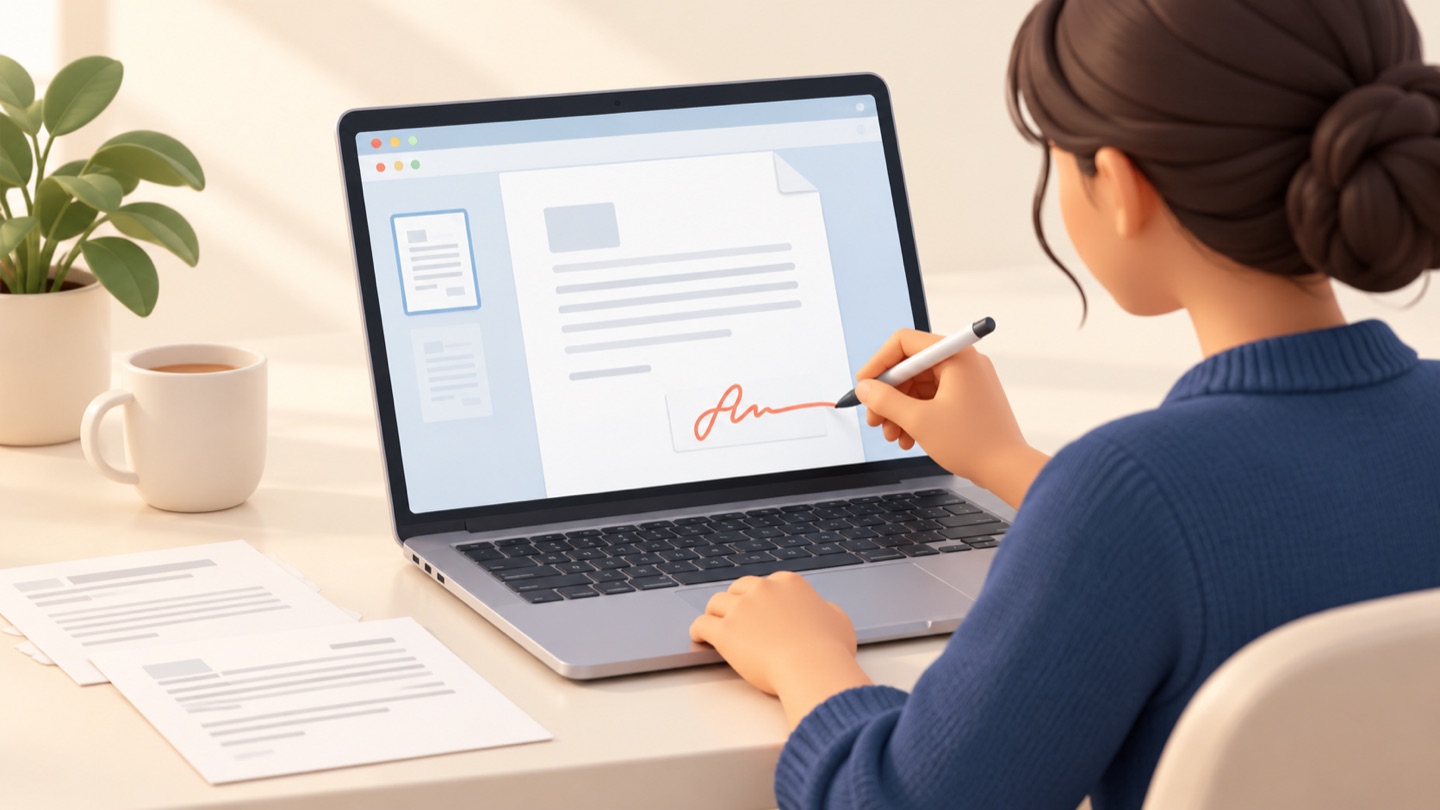
To sign a PDF: confirm what the recipient accepts, open the file in a trusted PDF app, add the requested kind of signature, save a separate copy, and reopen that copy to check it. A drawn or pasted signature is a visible mark. A certificate-based digital signature uses cryptography to help verify who signed the document and whether signed content changed.
This guide covers the common ways to sign a PDF, how to choose between them, and what to check before returning the file.
Use Sign PDF Document for the visible-signature workflow
Sign PDF Document is our Chrome workspace for preparing a PDF before you send it. You can open a PDF, draw a signature or upload a PNG, JPEG, or WebP signature image, add names, dates, stamps, and notes, then resize, rotate, and place every item on the page. It also lets you reorder, rotate, add, or remove pages, merge PDFs and images, review the file at 50–200% zoom, and download or print the finished PDF. Files and edits stay on your device, and no account is required.
Use it when the recipient accepts a visible electronic signature or needs a completed PDF. It does not replace a certificate-based digital-signature workflow where a recipient requires a particular digital ID, certificate, or third-party validation.
Choose the right signing method
| Method | What it adds | Best for | What to confirm |
|---|---|---|---|
| Draw or type a signature | A visible signature mark | Informal forms and documents where the recipient accepts a visual signature | Whether a typed or drawn mark is acceptable |
| Insert a signature image | A reusable picture of a signature | Repeated forms or a clean handwritten mark | Permission to use the image and whether the PDF remains editable |
| Sign with a certificate | A cryptographic signature associated with a digital certificate | Workflows that require signer verification or document integrity checks | Which certificate, identity provider, and signing format the recipient requires |
| Print, sign, and scan | A scan or photo of a paper-signed document | When the recipient specifically asks for a wet-ink signature | Whether a scan is accepted and how to return the original |
The words electronic signature and digital signature are used differently by different services and laws. Ask the recipient what they mean if the distinction affects acceptance. A visible signature image alone does not create a certificate-based cryptographic signature.
Before you sign
Do these checks first; they prevent the most common rejected or incomplete submissions.
- Confirm the correct file. Check the sender, filename, version, and every page. Keep an untouched copy of the original.
- Read the signing instructions. Look for required fields, date format, initials, witnesses, a specific signing service, or a certificate requirement.
- Check whether the PDF is fillable or protected. A fillable form may have dedicated fields. A locked or certified file may restrict editing; do not try to bypass those restrictions.
- Choose where to work. For a one-off signature, the PDF tools already on your device may be enough. For a signature that must be validated, use the exact certificate-based workflow the recipient specifies.
- Plan a safe save location. Save a new signed copy with a clear filename, such as
agreement-signed-2026-10-20.pdf, rather than overwriting the source.
How to add a visible signature to a PDF
The labels differ by app, but the sequence is similar on desktop and mobile:
- Open the PDF in a PDF editor or a viewer with annotation tools.
- Choose Sign, Markup, Annotate, or the equivalent. If the form has a signature field, use that field first.
- Draw your signature, type your name if the app supports it, or import an image you are authorized to use.
- Place it within the requested area. Zoom in and check it does not cover instructions, nearby text, a date, or another signer’s field.
- Add the date or initials only where requested. Follow the recipient’s date format.
- Save or export a new PDF copy. If the app offers a choice between saving annotations into the original and creating a copy, keep the original unchanged.
- Close the editor and reopen the saved copy. Check that the mark is still present and in the right place.
For device-specific steps, see how to sign a PDF in Chrome, on iPhone or Mac, and on Android. To add a scanned or transparent signature image, use the image-signature guide.
How to fill out and sign a PDF form
Fill every required field before signing. Use the form’s own signature field when available; otherwise, add a visible signature with the app’s markup tools. Check whether the form needs initials on individual pages, a date, or a second signer. Some forms validate fields or lock content after signing, so save a review copy before finalizing if your app allows it.
If the form has no interactive fields, you may be able to add text boxes and a signature as annotations. Make sure the entered text aligns with the printed labels and remains readable at normal zoom. Our guide to filling and signing a PDF online explains the checks to make before downloading a completed form.
Visible signature vs certificate-based signature
| Check | Visible signature | Certificate-based digital signature |
|---|---|---|
| Can a person see a signature on the page? | Usually | Often, but appearance is configurable |
| Does the mark by itself verify the signer’s identity? | No | A compatible viewer can validate certificate information and the signature |
| Can it help show whether signed content changed? | No | Yes, when correctly created and validated |
| Is it accepted everywhere? | No; acceptance depends on the recipient and applicable rules | No; the recipient may require a particular certificate or service |
| Typical setup | Draw, type, or place an image | Obtain and use an approved digital certificate or signing identity |
NIST describes digital signatures as a cryptographic mechanism that can help authenticate origin and detect changes. That technical property does not by itself decide whether a particular signature is legally sufficient or accepted by an organization. See the NIST digital signatures overview, then follow the recipient’s requirements.
Check the PDF before sending it
Use this final checklist:
- The signed file is the correct version and includes every page.
- The signature is visible, legible, and in the intended field.
- The name, date, initials, and other required fields are complete.
- No text or page content was accidentally covered, moved, or removed.
- The file opens after saving, and annotations remain visible when reopened.
- The filename makes clear that this is the signed copy.
- The delivery method and file type match the recipient’s instructions.
- You have not shared a signature image or sensitive document more widely than necessary.
Avoid converting the PDF to a set of images or flattening it unless the recipient says that is acceptable. Flattening can remove interactive fields and may prevent a certificate signature from being validated as expected.
Troubleshooting common PDF signing problems
| Problem | Likely reason | What to try |
|---|---|---|
| I cannot find a Sign button | The app is a basic viewer, or the control is under Markup or Annotate | Open the PDF in an editor with signing or annotation tools, or use your device’s built-in PDF app |
| I cannot type in a field | The form is not interactive, is restricted, or is open in a viewer | Use an allowed text annotation or ask the sender for a fillable copy |
| My signature disappeared after saving | The app saved an annotation separately or did not export the edited file | Use Save a copy or Export, then reopen the exported PDF |
| The document says the signature is invalid | The certificate may be missing, expired, untrusted, or the file changed after signing | Open the signature details in a compatible viewer and ask the sender or administrator for the approved workflow |
| The recipient rejected my signature | They may require ink, a named service, a witness, or a certificate | Ask which exact signing method and return format they accept before signing again |
Do not remove a security restriction or edit a certified PDF to force a signature into it. Request an editable copy or the authorized signing route from the document owner.
Frequently asked questions
Can I sign a PDF without printing it?
Often, yes. A PDF app can add a visible signature or apply a certificate-based signature. Whether that method is accepted depends on the document and recipient.
Is a pasted signature image a digital signature?
It is a visible signature mark, but it does not by itself provide cryptographic verification of identity or document integrity. Ask the recipient if an image is enough.
Can I sign a PDF for free?
Many devices include basic PDF markup tools, so a simple visible signature may not require a paid app. Certificate-based signing may require an organization-issued certificate or an approved service. Check the recipient’s requirements before choosing a tool.
Is signing a PDF online safe?
It depends on the service and the document. Before uploading, check who operates the service, what its privacy terms say, how files are handled, and whether the document contains confidential information. For sensitive paperwork, prefer an approved local or organization-managed workflow.
What should I do if someone else has already signed the PDF?
Do not edit or overwrite another person’s signed copy without permission. Ask whether the document is intended for sequential signing and use the process the sender specified; editing can invalidate a certificate signature.