
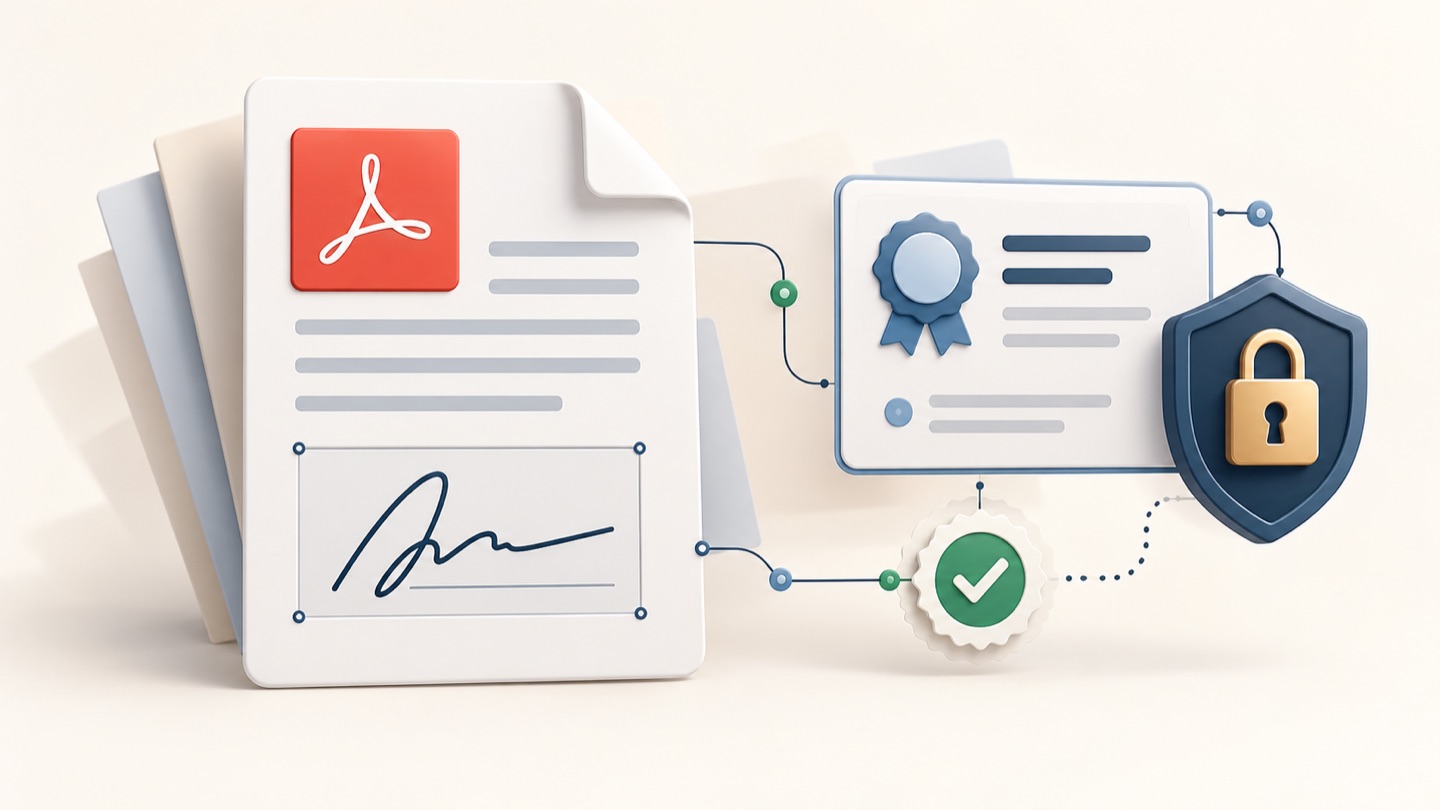
A certificate-based digital signature uses cryptographic data and a digital certificate to help a compatible PDF reader check the signer’s identity and whether signed content has changed. It is different from drawing, typing, or pasting a signature image onto a page. Before adding one, confirm that the recipient accepts your certificate and signing software; a technically valid signature is not automatically accepted for every purpose.
Where Sign PDF Document fits
Sign PDF Document is our Chrome app for preparing a PDF with visible electronic marks: draw a signature or upload a PNG, JPEG, or WebP image, add names, dates, text, stamps, and notes, then move, resize, or rotate each item. It also lets you merge PDFs and images, organize pages, and download or print the completed file. Documents are processed locally in your browser, and no account is required.
Use it when the recipient accepts a visible electronic signature. Do not describe its drawn or image signatures as certificate-based digital signatures: it does not issue certificates, manage private keys, or provide cryptographic validation.
What a digital certificate does
A digital signature is associated with a key pair and certificate. The signing key creates the signature; compatible software checks it against the corresponding public information and certificate chain. NIST explains that digital signatures can help authenticate origin and detect changes to signed data in its digital signatures overview. Validation depends on the certificate, trust configuration, signature format, and whether the document changed after signing.
| Signature type | What appears in the PDF | What software can check | Common limitation |
|---|---|---|---|
| Typed name, drawing, or pasted image | A visible mark | Usually only that the mark is present | Does not by itself verify signer identity or later changes |
| Certificate-based digital signature | A visible appearance may be shown, plus signature data | Certificate details, signature validity, and changes after signing | The recipient may not trust the certificate or may require a different workflow |
| Managed electronic-signature service | A mark plus service-specific records | Depends on the service and audit trail | Acceptance and verification depend on the service and recipient |
The labels electronic signature and digital signature are not used identically in every country or product. Ask the recipient for the exact method they require rather than relying on the label alone.
Before you sign: check the requirements
Ask the document owner or administrator:
- Which certificate or digital identity should I use?
- Does the organization trust the certificate, or must it be issued by a specific provider?
- Which PDF software or signing service is supported?
- Should the signature lock the document against further changes?
- Are additional form fields, a timestamp, witness, or separate audit record required?
- How should I return the signed file, and may another person sign afterward?
If your organization issued a certificate, follow its setup instructions. Do not create a personal or self-signed certificate for a formal workflow unless the recipient confirms it will be trusted.
General certificate-signing workflow
Exact menu names differ among PDF tools, but the process usually follows these stages:
- Open the correct, final PDF in software that supports certificate-based signing.
- Choose the command named Digitally sign, Use a certificate, or equivalent. A button called Sign may instead add a visual mark, so verify the signature type.
- Draw or select the signature field if the app requires one. Place it where the recipient expects it.
- Select the approved digital ID or certificate. Review the displayed signer information before continuing.
- Authenticate with the required credential, such as a password, hardware token, or organizational login. Never share the private key or password with the document recipient.
- Save the signed PDF as instructed. Some signing operations lock fields or restrict later edits.
- Reopen the file in compatible software and inspect the signature panel. Check the certificate identity, trust status, timestamp if present, and any warning about changes.
- Send the file through the recipient’s approved channel. Avoid editing the PDF after signing unless the workflow explicitly supports additional signatures.
Understand validation warnings
| Reader message or status | Possible meaning | Next step |
|---|---|---|
| Signature is valid | The software validated the signature under its current trust settings | Confirm that the identity and signing time match your expectations |
| Signer is unknown or untrusted | The certificate chain may not be trusted on this device | Ask the recipient or administrator how to verify the certificate; do not install certificates from an unknown source |
| Document changed after signing | Content may have been modified after the signature was applied | Compare the change history and ask the sender whether the change was expected |
| Certificate expired or revoked | The certificate may no longer be valid under the reader’s checks | Contact the certificate issuer or administrator for guidance |
| Signature cannot be verified | The reader may not support the format or may lack required trust information | Use compatible software or ask the recipient for the approved validation process |
A warning is not proof of fraud, but do not ignore it. Verify the document and certificate through a trusted channel before relying on it.
Security and workflow tips
- Protect the private key and any hardware token. A certificate signature is only trustworthy when signing credentials remain under the signer’s control.
- Sign the final version. Editing content afterward can invalidate the signature or create a warning.
- Keep a copy of the unsigned source and the final signed file according to your organization’s retention rules.
- Do not treat a visible seal or signature picture as proof that cryptographic validation succeeded; check the software’s signature panel.
- Do not assume a certificate signature is legally sufficient in every jurisdiction or transaction. The recipient’s rules and local law still matter.
Frequently asked questions
Can I add a digital signature to a PDF for free?
Possibly, if you already have a trusted certificate and software that supports the required signature format. The certificate or managed signing service may have a cost or organizational access requirement. Check with the recipient before choosing a tool.
Is a digital certificate the same as a signature image?
No. A signature image is visible artwork. A certificate-based signature adds cryptographic data that compatible software can validate.
Why does my signature show as untrusted?
The reader may not trust the certificate issuer, may not have current revocation information, or may not support the signature format. Ask the certificate issuer or recipient how to verify it; do not download a random certificate to silence the warning.
Can someone edit a PDF after it is digitally signed?
Some workflows permit additional signatures or specified form filling, but other edits can invalidate the signature or be reported by the reader. Follow the document’s signing order and do not make changes after signing unless instructed.
Related guides
- How to sign a PDF: choose the right method
- How to add a signature image to a PDF
- How to fill and sign a PDF online
Official reference
Digital signatures overview — National Institute of Standards and Technology