
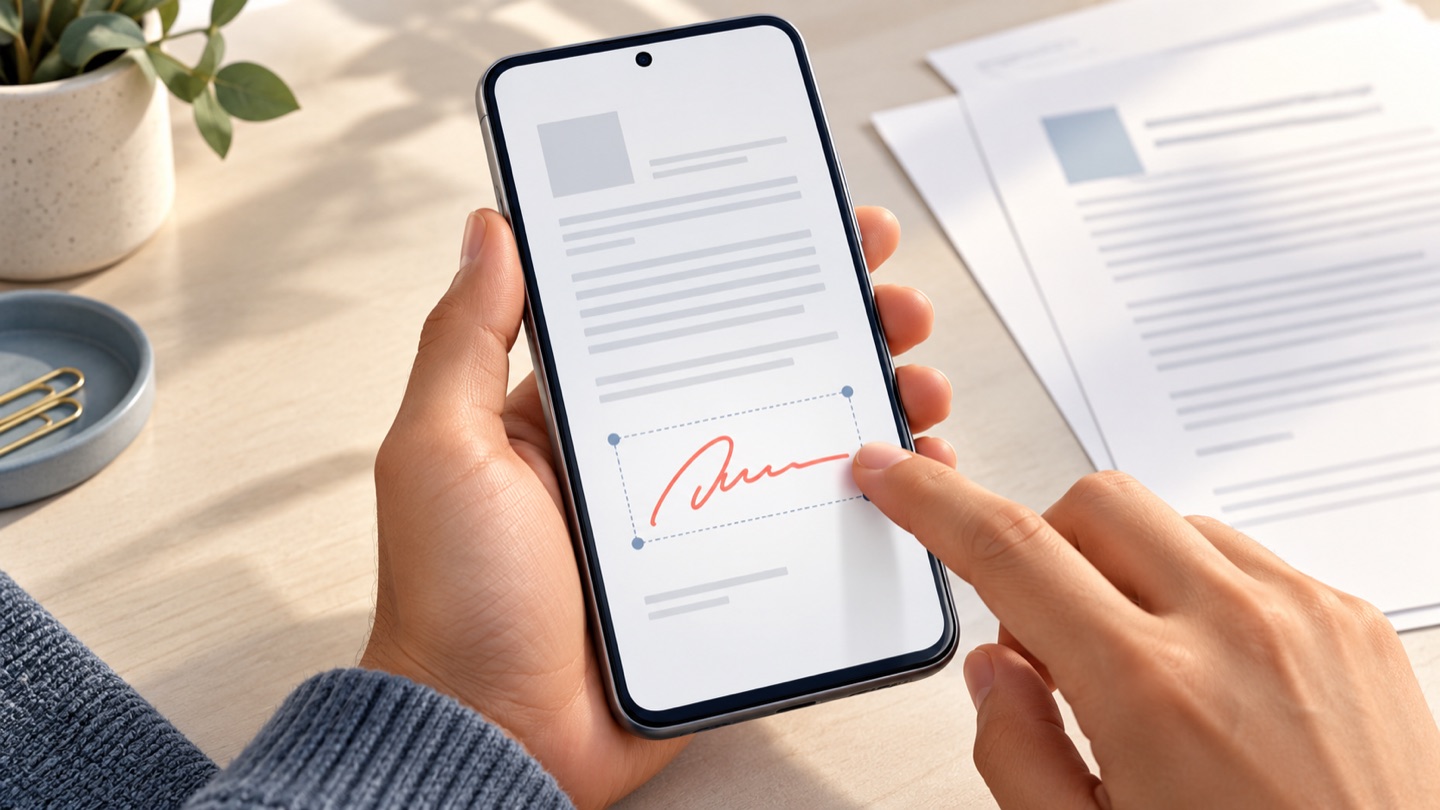
On Android, you can add a visible signature to a PDF with an app that supports annotations. Google Drive lets you mark up a PDF with a finger or stylus and save either the original or a new copy. Its freehand pen creates an annotation, not a certificate-based digital signature. If a recipient requires a certificate or a particular signing service, use that approved workflow.
The steps below follow Google Drive’s PDF annotation instructions. Button names can vary by Android version and app update.
Use Sign PDF Document when you are back at Chrome
For a fuller desktop PDF workflow, use Sign PDF Document in Chrome. It lets you draw a signature or upload a PNG, JPEG, or WebP signature image, add dates, names, text, stamps, and notes, then move, resize, and rotate each item. You can merge PDFs and image pages, organize thumbnails, and download or print the finished file. Processing happens locally in the browser, with no account required.
It is designed for visible electronic signatures and document preparation. A recipient that requires a certificate-based digital signature still needs the certificate workflow they specify.
Sign a PDF in Google Drive on Android
- Open the Google Drive app and find the PDF. If the file is stored elsewhere, upload or save it to a location your organization allows before opening it.
- Tap the PDF to enter preview mode.
- Tap the Annotate button, usually near the bottom-right corner. If it is missing, update Drive or open the file in an approved PDF editor that supports annotations.
- Choose the pen tool and select a color and stroke width. Use a stylus if available; otherwise, zoom in and write carefully with your finger.
- Draw your signature in the intended field. Use undo or the eraser to correct a mistake. Check that the mark does not cover text or a date.
- Choose whether to save the annotated original or create a new copy with a different name. A separate copy preserves the unmarked source.
- Open the saved file again from Drive or Files. Review every page and confirm your changes are present.
If your app has a signature tool
Some PDF apps offer a dedicated Fill & Sign, Signature, or Add signature command. That may let you draw a signature once and reuse it, or import a signature image. The steps depend on the app. Before selecting a file, check whether it processes the document locally or uploads it, and whether the recipient accepts the signature type it creates.
| Your need | Suitable tool or next step |
|---|---|
| Add a quick handwritten-looking mark | Use Drive’s annotation pen or an approved PDF markup app |
| Reuse a saved signature | Use a trusted app with a signature feature; protect access to the saved mark |
| Fill a form field | Use the PDF’s interactive field or an approved form-filling app |
| Prove signer identity or detect later changes | Ask for the certificate-based workflow the recipient supports |
| Edit is blocked | Request an editable copy or instructions from the sender |
Fix common Android PDF signing problems
- Annotate is unavailable: the file may be open in a browser preview, your Drive app may be out of date, or the file may not support editing. Open it in the Drive app or an approved editor.
- The signature is hard to control: rotate the device, zoom in, or use a stylus. Make sure the annotation toolbar is not covering the signing area.
- Changes did not save: check whether the app saved the original or a separate copy, then reopen the correct file. Do not assume the preview itself is the downloaded file.
- The PDF opens read-only: it may be protected or certified. Do not bypass the restriction; contact the document owner.
- The form is a scan: handwriting fields will not become interactive. You may add a visible annotation if allowed, or request a fillable PDF.
Check privacy before sharing
PDFs can contain account numbers, addresses, signatures, or other private information. Store the finished document in a location you control, review the app’s sharing settings, and confirm the recipient before sending. If you use a shared device, remove temporary copies from public folders and sign out of accounts when appropriate. For work or regulated documents, follow your organization’s file-handling rules.
Frequently asked questions
Can I sign a PDF on Android without printing?
Yes, if the recipient accepts an electronic signature and your app can annotate or sign PDFs. Save the completed copy and check it before sending.
Is a mark made in Google Drive a digital certificate signature?
No. Drive’s freehand markup is an annotation. A certificate-based digital signature uses cryptographic credentials and must be validated by compatible software.
Can I upload a signature image from my phone?
Only if your PDF editor has an image or signature import feature. Drive’s basic annotation instructions describe pen and freehand markup. See how to add a signature image to a PDF.
What if the recipient says the signature is invalid?
Ask what method they require. They may need an ink signature, a certificate, a specific service, or a different copy of the document. A visible signature alone may not meet the requirement.
Related guides
- How to sign a PDF: methods and final checks
- How to sign a PDF on iPhone or Mac
- How to fill and sign a PDF online